|
Closer Look
Installation
To start off I had to install the mouse and software. Just as
with any USB device I connected it into a USB port and followed
the hardware detection prompts to install the driver. After installation
of the driver, I installed the included software off the CD. This
installed the Mouseware and Immersion Desktop software.
The Immersion Desktop software is the application that controls
and allows you to customize the feel of your mouse. Since this is
a vital part of the mouse, lets take a closer look at it.
After Installation of the software I noticed the addition of an
Immersion Desktop icon in my systray for quick access.

After double clicking on the systray icon I was presented with
the controls for the feel of the mouse.
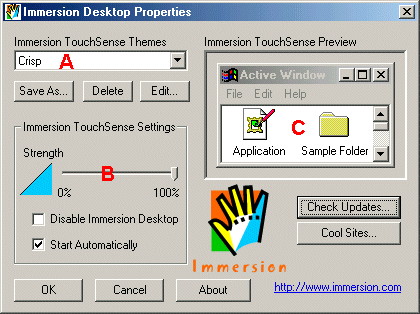
(A) Themes - Allows you to select between several included themes
or to create your own
(B) TouchSense Settings - Allows you to disable Immersion Desktop
and select whether or not to have it start automatically.
(C) Touchsense Preview - Allows you to preview the current selected
theme by performing various task in the sample window.
To customize a theme I selected one of the pre-defined themes and
selected edit. After doing this, I was presented with the following
window.
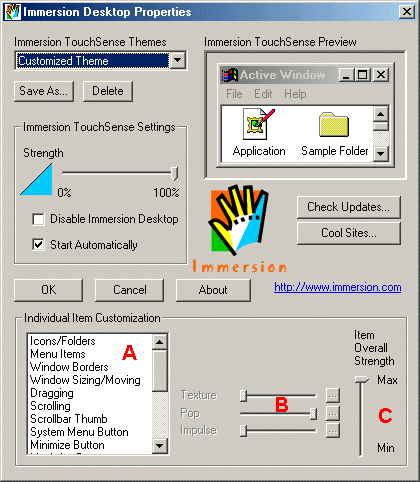
(A) Allows you to select an action for which you would like to
adjust the feel for.
(B) Slider bars which allow you to adjust the feel of the selected
action.
(C) Allows you to set the overall strength of the actions feel.
For example, if you want a hard vibration of the mouse when you
minimize a window you can set that here.
|